
How to monitor your pets and family at home from anywhere using your Android smartphone camera
September 04, 2024
Have you ever wondered how your pets or elderly family members are doing while you're out and about, such as when you're commuting to work or traveling? In that case, you can install a dedicated network camera at home and use a monitoring service provided by a vendor. However, I think there are issues with that, such as the need to purchase a network camera and subscribe to a paid service, and concerns about the security of the vendor providing it. Therefore, I would like to introduce you to the "SP Camera", which allows for easy and safe monitoring.
The access environment
For the access environment, you will prepare two Android smartphones for use on the shooting side and viewing side. Then, use the "SP Camera" as a network environment that connects Android smartphones. (This is a P2P app developed by us and provided free of charge)
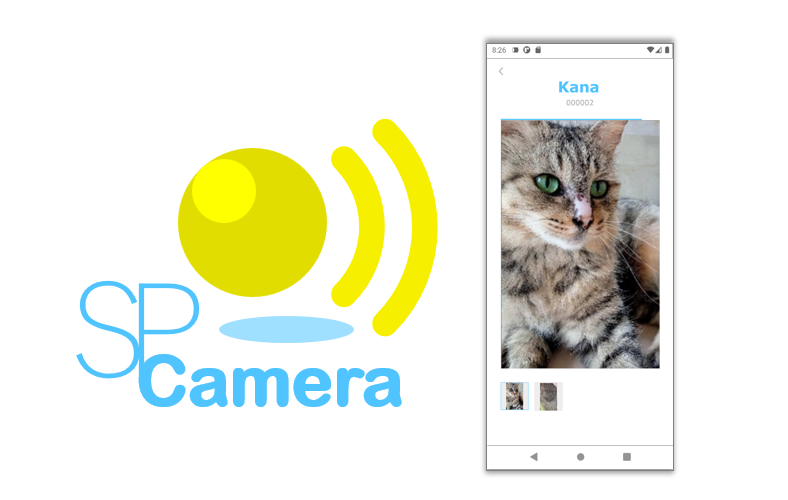
The SP Camera can be installed and used on two or more Android smartphones, and the camera images can be checked by simply linking the smartphones with a QR code. Camera image data between apps on your device is end-to-end encrypted, so you can safely access the data without it being seen by third parties.
Setup
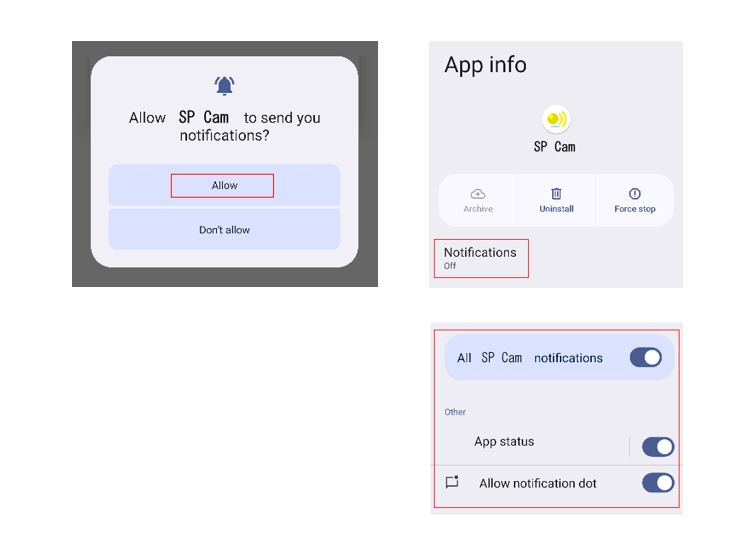
First, install "SP Camera" on both Android smartphones. *A message will appear asking for permission to grant notifications to the app; please allow it.
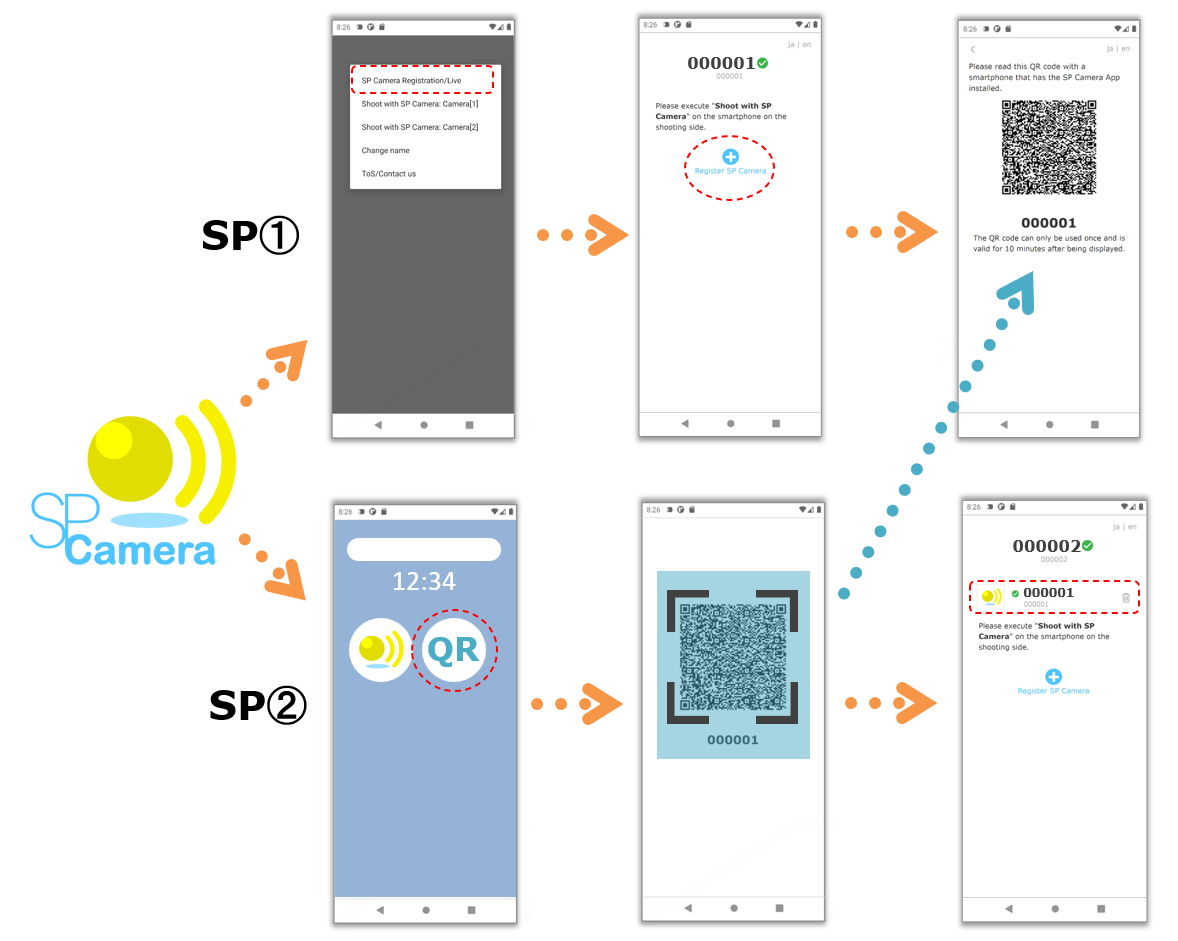
Select "SP Camera Registration/Live" from the menu on the shooting side smartphone, then click "Register SP Camera" to display the QR code.
Then, use the viewing side smartphone to read the QR code and register (please use a dedicated app to read the QR code). This completes the linking between the smartphones.
Next, start "Shoot with SP camera" from the menu of the shooting smartphone (there are two cameras, Camera[1] and Camera[2], one of which is the rear camera or the front camera).
How to avoid stopping SP Camera of the shooting smartphone as much as possible
It is assumed that the shooting smartphone will be left running while you want to monitor the image of SP Camera, but depending on the processing on the smartphone OS side, the running SP Camera app may be forcibly stopped or put to sleep. As a countermeasure, there are the following methods.
- Keep your smartphone charged.
- Enable developer options and enable "Screen wil never sleep while charging".
- Set "Auto-update apps" in Google Play to "Don't auto-update apps".
* Due to OS specifications, there is a limit to the continuous operation time of the app's foreground service, and the app's internal services are automatically stopped and started approximately every 5 hours.
Finally, select "SP Camera Registration/Live" from the viewing smartphone's menu and select the registered shooting smartphone to check the live image of the camera. Snapshots of the camera image on the viewing side are displayed in JPEG format at intervals of several seconds. It is also possible to replay the viewed image.
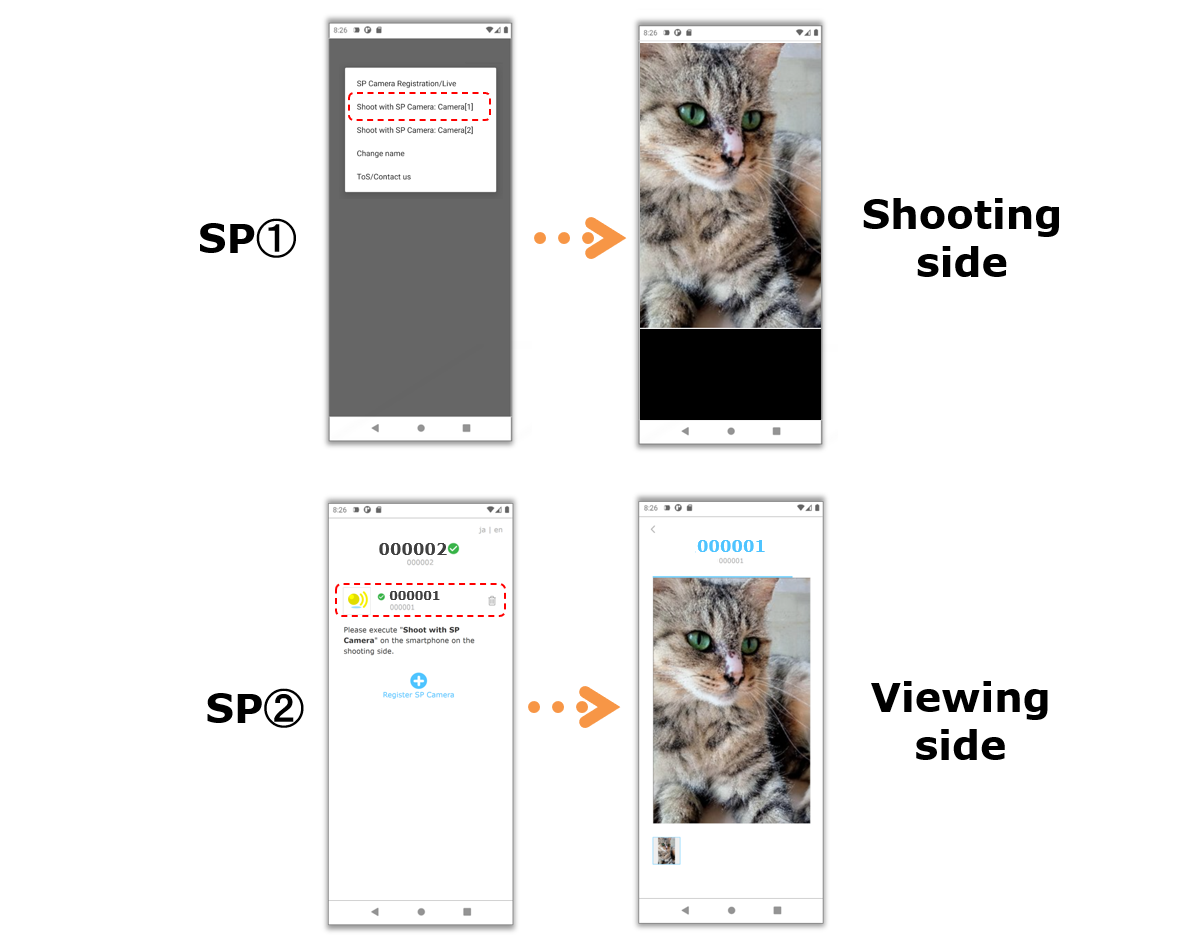
When you launch "Shoot with SP Camera", if a message appears asking for permission to take photos and videos, please allow it.

The SP Camera setup is now complete. It's easy!
Replay images can be saved as a ZIP compressed file of JPEG format images, and can be used for content such as blogs.
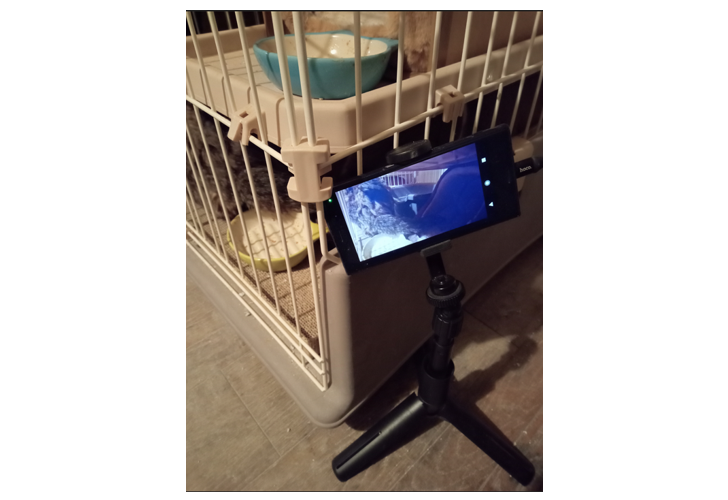
Until the end Thank you for reading! If you have any opinions, please feel free to send us a message.
P2P · Android · Camera