How to View Your PC's Camera Image from Your Android Smartphone Outside the House
July 31, 2026
Have you ever wanted to view your PC's camera image using your smartphone from anywhere, such as when commuting to work or traveling? In that case, one option is to log in to the PC via Remote Desktop to check. However, that approach comes with issues such as needing to change your home router settings, the inability to easily view the camera feed, and security concerns. Therefore, I would like to introduce an easy and safe way to do it using P2P.
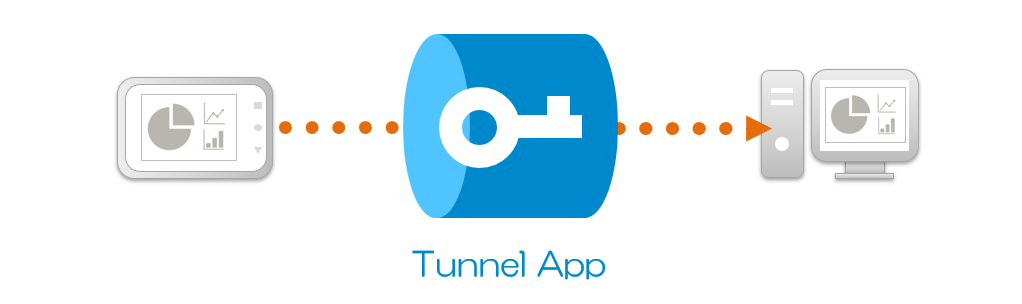
The access environment
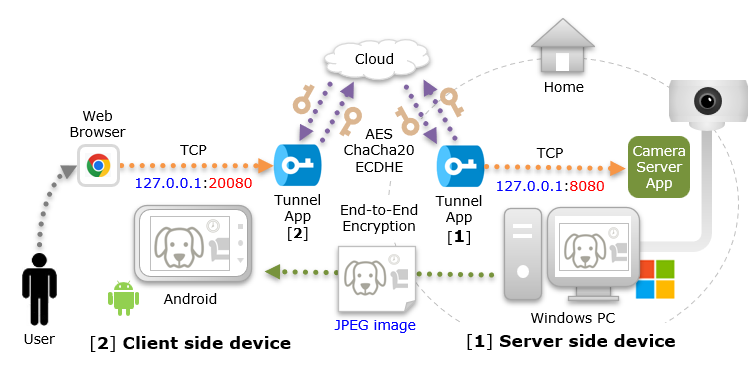
The access environment uses an Android smartphone, and a Windows PC connected to the camera. Then, use a "Tunnel App" for the network environment that connects Android and Windows. (This is a P2P app developed by us and provided free of charge)
The Tunnel App is installed and used on two devices, one app accepts access from the client app on a proxy port, and the other app accesses the server app. Communication data between apps on your device is end-to-end encrypted, so you can safely access the data without it being seen by third parties.
Windows PC setup
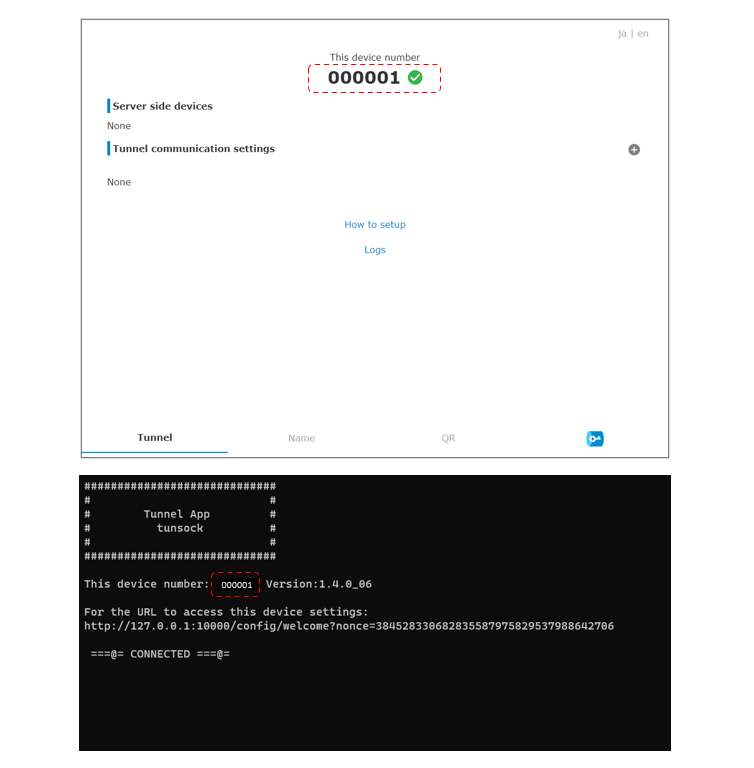
On a Windows PC, then install and start the"Tunnel App (Windows version)". Then, the following command prompt and browser screen will be displayed. In this example, Tunnel App's device number is "000001".
Next, set up a simple camera server app to capture camera images.
The app is designed with simple specifications: it delivers a camera snapshot as a JPEG image upon receiving a specified HTTP request. As the app is intended to run on Windows, sample code implemented in C# is provided below.
The app listens for HTTP requests on port "8080" and restricts access to "127.0.0.1 (localhost)" only. Additionally, the camera image filename is specified as "camera.jpg"; requests for any other file will result in an error response.
using System;
using System.IO;
using System.Collections.Generic;
using System.Net;
using System.Net.Sockets;
using System.Text;
using System.Threading.Tasks;
using Windows.Media.Capture;
using Windows.Media.MediaProperties;
using Windows.Storage;

class Program
{
    static async Task Main(string[] args)
    {
        IPAddress ipAddress = IPAddress.Loopback;
        int port = 8080;
        TcpListener server = new TcpListener(ipAddress, port);
        server.Start();
        Console.WriteLine($"HTTP server host: {ipAddress} port: {port} accepting...");
        try
        {
            while (true)
            {
                TcpClient client = await server.AcceptTcpClientAsync();
                _ = Task.Run(() => HandleClientAsync(client));
            }
        }
        catch (Exception ex)
        {
            Console.WriteLine($"ERROR: The server has stopped. {ex.Message}");
        }
        finally
        {
            server.Stop();
        }
    }

    private static async Task HandleClientAsync(TcpClient client)
    {
        using (client)
        using (NetworkStream stream = client.GetStream())
        {
            byte[] buffer = new byte[2048];
            try
            {
                int bytesRead = await stream.ReadAsync(buffer, 0, buffer.Length);
                if (bytesRead == 0) return;
                string rawRequest = Encoding.UTF8.GetString(buffer, 0, bytesRead);
                var httpContext = ParseHttpGet(rawRequest);
                if (httpContext.IsValid)
                {
                    string dirPath = AppContext.BaseDirectory;
                    string fileName = "camera.jpg";
                    if (!httpContext.Path.Equals($"/{fileName}")){
                        await ReponseError(stream, "404", "Not Found");
                        Console.WriteLine($"ERROR: Path: {httpContext.Path}");
                        return;
                    }
                    await CaptureSnapshotJpeg(dirPath, fileName);
                    string filePath = $"{dirPath}\\{fileName}";
                    byte[] fileBytes = File.ReadAllBytes(filePath);
                    string httpHeader
                        = "HTTP/1.1 200 OK\r\n"
                        + "Content-Type: image/jpeg;\r\n"
                        + $"Content-Length: {fileBytes.Length}\r\n"
                        + "Connection: close\r\n\r\n";
                    byte[] headerBytes = Encoding.UTF8.GetBytes(httpHeader);
                    await stream.WriteAsync(headerBytes, 0, headerBytes.Length);
                    await stream.WriteAsync(fileBytes, 0, fileBytes.Length);
                    Console.WriteLine($"SUCCESS: {httpContext.Method} {httpContext.Path} {fileBytes.Length}");
                }
                else
                {
                   await ReponseError(stream, "400", "Bad Request");
                   Console.WriteLine($"ERROR: Method: {httpContext.Method}");
                }
            }
            catch (Exception ex)
            {
                await ReponseError(stream, "500", "Internal Server Error");
                Console.WriteLine($"ERROR: {ex.Message}");
            }
        }
    }

    private class HttpRequestContext
    {
        public bool IsValid { get; set; } = false;
        public string Method { get; set; } = string.Empty;
        public string Path { get; set; } = string.Empty;
        public Dictionary<string, string> QueryParameters { get; set; } = new();
    }

    private static HttpRequestContext ParseHttpGet(string rawRequest)
    {
        var context = new HttpRequestContext();
        if (string.IsNullOrWhiteSpace(rawRequest)) return context;
        string[] lines = rawRequest.Split(new[] { "\r\n", "\n" }, StringSplitOptions.None);
        if (lines.Length == 0) return context;
        string[] tokens = lines[0].Split(' ');
        if (tokens.Length < 3) return context;
        context.Method = tokens[0];
        string fullPath = tokens[1];
        if (context.Method != "GET") return context;
        context.IsValid = true;
        int queryIndex = fullPath.IndexOf('?');
        if (queryIndex >= 0)
        {
            context.Path = fullPath.Substring(0, queryIndex);
            string queryString = fullPath.Substring(queryIndex + 1);
            string[] pairs = queryString.Split('&');
            foreach (string pair in pairs)
            {
                string[] kv = pair.Split('=');
                if (kv.Length == 2)
                {
                    string key = Uri.UnescapeDataString(kv[0]);
                    string value = Uri.UnescapeDataString(kv[1]);
                    context.QueryParameters[key] = value;
                }
            }
        }
        else
        {
            context.Path = fullPath;
        }
        return context;
    }

    static async Task ReponseError(NetworkStream stream, string code, string message)
    {
        string badRequestResponse = $"HTTP/1.1 {code} {message}\r\nConnection: close\r\n\r\n";
        byte[] responseBytes = Encoding.UTF8.GetBytes(badRequestResponse);
        await stream.WriteAsync(responseBytes, 0, responseBytes.Length);
    }

    static async Task CaptureSnapshotJpeg(string dirPath, string fileName)
    {
        var mediaCapture = new MediaCapture();
        var settings = new MediaCaptureInitializationSettings
        {
            StreamingCaptureMode = StreamingCaptureMode.Video
        };
        await mediaCapture.InitializeAsync(settings);
        StorageFolder folder = await StorageFolder.GetFolderFromPathAsync(dirPath);
        StorageFile file = await folder.CreateFileAsync(fileName, CreationCollisionOption.ReplaceExisting);
        var imgFormat = ImageEncodingProperties.CreateJpeg();
        await mediaCapture.CapturePhotoToStorageFileAsync(imgFormat, file);
        mediaCapture.Dispose();
    }
}
A sample of the build command used in my PC environment is provided below.
* To build the C# code, you need to install the .NET SDK, MSBuild, and Visual Studio Build Tools.
"C:\Program Files (x86)\Microsoft Visual Studio\2022\BuildTools\MSBuild\Current\Bin\Roslyn\csc.exe" /reference:"C:\Program Files (x86)\Windows Kits\10\UnionMetadata\10.0.28000.0\Windows.winmd" /reference:"C:\Program Files (x86)\Reference Assemblies\Microsoft\Framework\.NETFramework\v4.8\Facades\System.Runtime.dll" /reference:"C:\Windows\Microsoft.NET\Framework\v4.0.30319\System.Runtime.WindowsRuntime.dll" Program.cs
Once the build succeeds, the executable "Program.exe" is created; launch it from the PowerShell console.
PS C:\camera_server_app> .\Program.exe
HTTP server host: 127.0.0.1 port: 8080 accepting...
After confirming that the camera connected to the PC is enabled, access "http://127.0.0.1:8080/camera.jpg" from a web browser on the same PC. The camera image will be displayed.
SUCCESS: GET /camera.jpg 174301

Setup Android smartphone
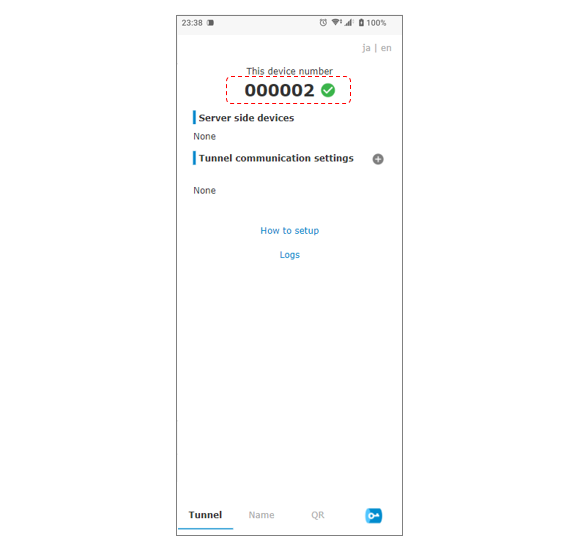
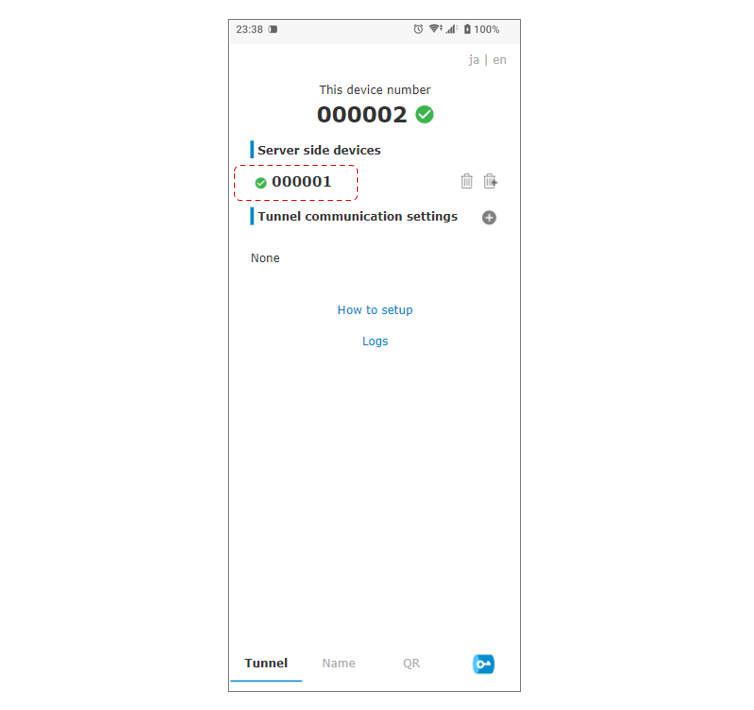
Install and start the "Tunnel App (Android version)" on an Android smartphone. In this example, Tunnel App's device number is "000002".
Display the QR code of Tunnel App on the Windows PC that you installed earlier, and read it with the QR code reader on your for Android smartphone.
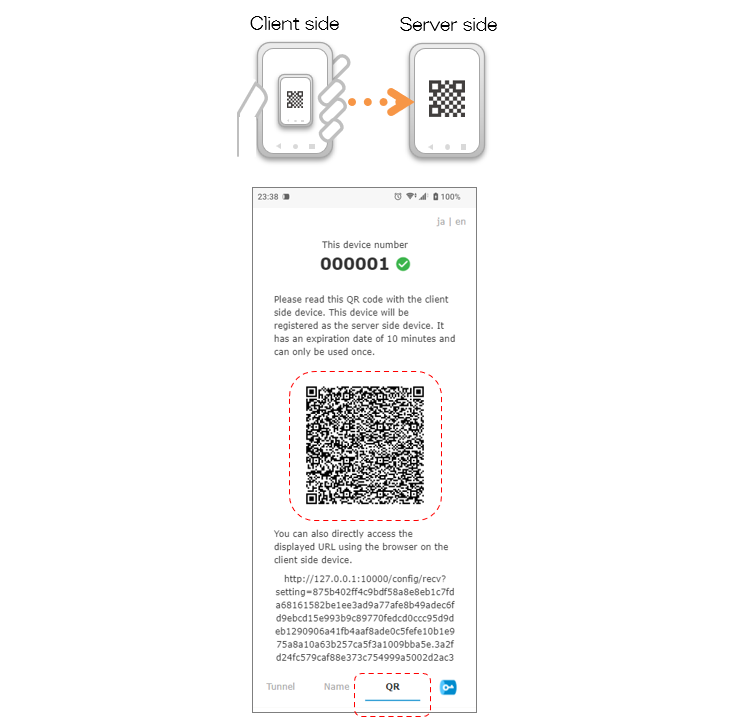
Then, Tunnel App on the Windows PC will be registered as a server side device.
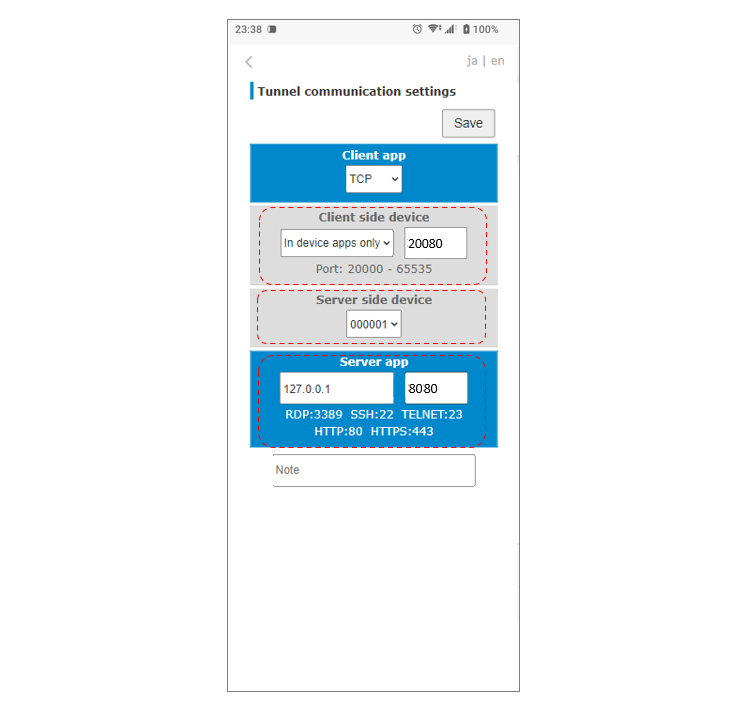
Next, register the tunnel communication settings.
On the "Client side device", select "In device apps only" to limit access to "127.0.0.1 (local host)", and input "20080" as a proxy port to accept access from web browser.
For the "Server side device", select Tunnel App "000001" on the for Windows PC, set "127.0.0.1" and port "8080", and save.
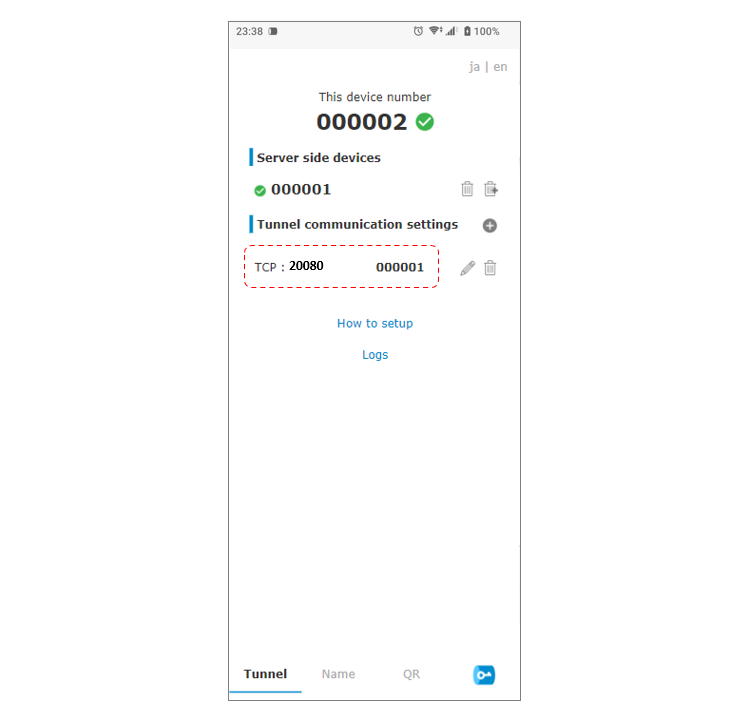
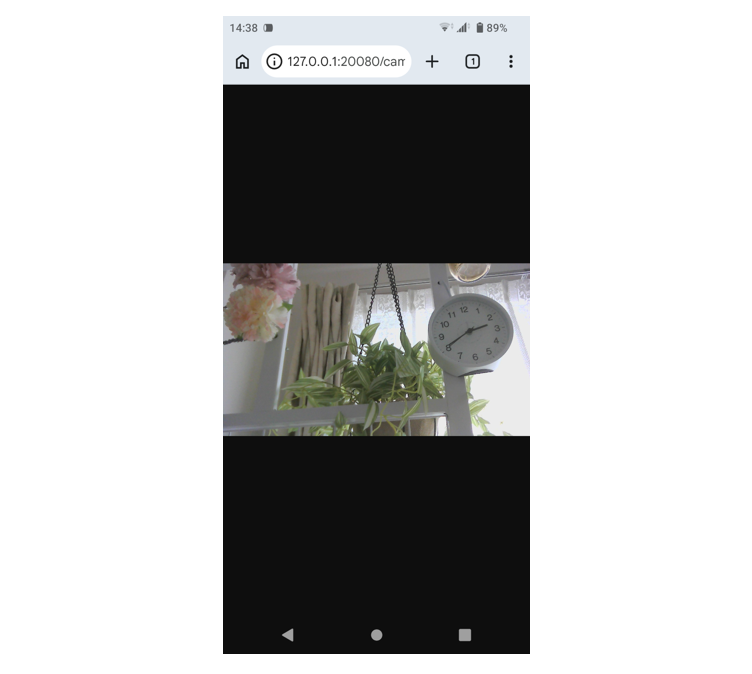
Accessing "http://127.0.0.1:20080/camera.jpg" from your Android smartphone's web browser displays the camera image!
Until the end Thank you for reading! If you have any opinions, please feel free to send us a message.
P2P · Android · IoT/M2M · Camera · Windows