
How to monitor the status of an object using Android's rotation angle
March 24, 2026
Have you ever wanted to monitor whether an object in your home have moved for security or surveillance purposes? In that case, you could use a system that uses camera footage to detect objects and determine if they have moved. However, building such an environment at home is a large-scale undertaking and presents technical hurdles, making it generally difficult. Therefore, I would like to introduce "SP Sensor", which allows you to easily monitor the state of objects using the "rotation angle" of your smartphone.
The access environment
For the access environment, you will prepare two Android smartphones for use on the sensor side and monitoring side. Then, use the "SP Sensor" as a network environment that connects Android smartphones. (This is a P2P app developed by us and provided free of charge)
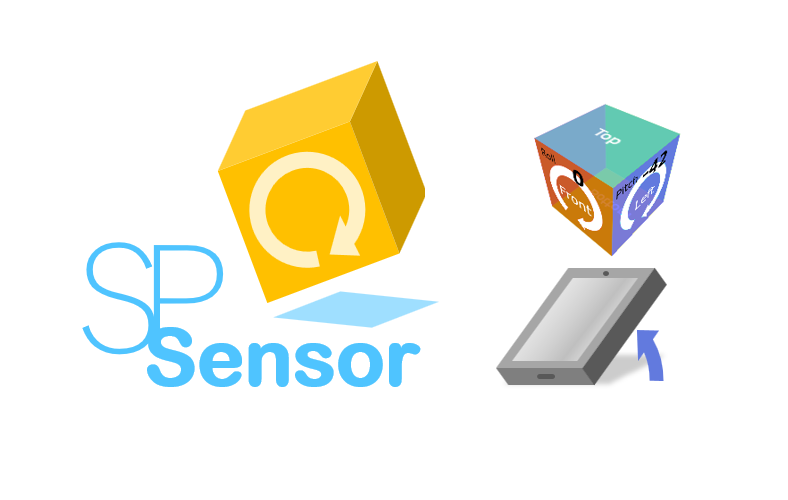
"SP Sensor" can be installed on two or more Android smartphones, and by linking the smartphones together using a QR code, you can check the rotation angle status of the smartphones in real time. Rotation angle data between apps on your device is end-to-end encrypted, so you can safely access the data without it being seen by third parties.
Usage example
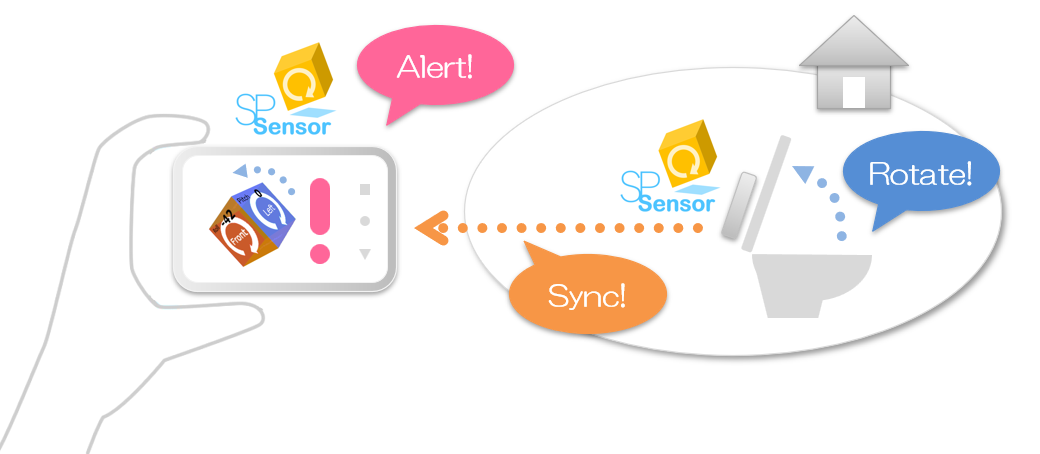
Here's a video demonstrating the operation of "SP Sensor" in a real-world setup. The sensor side "SP Sensor" is installed on the toilet lid, and when the lid is opened, an alert is sent to the monitoring side "SP Sensor".
Remotely monitor your smartphone's "rotation angle"
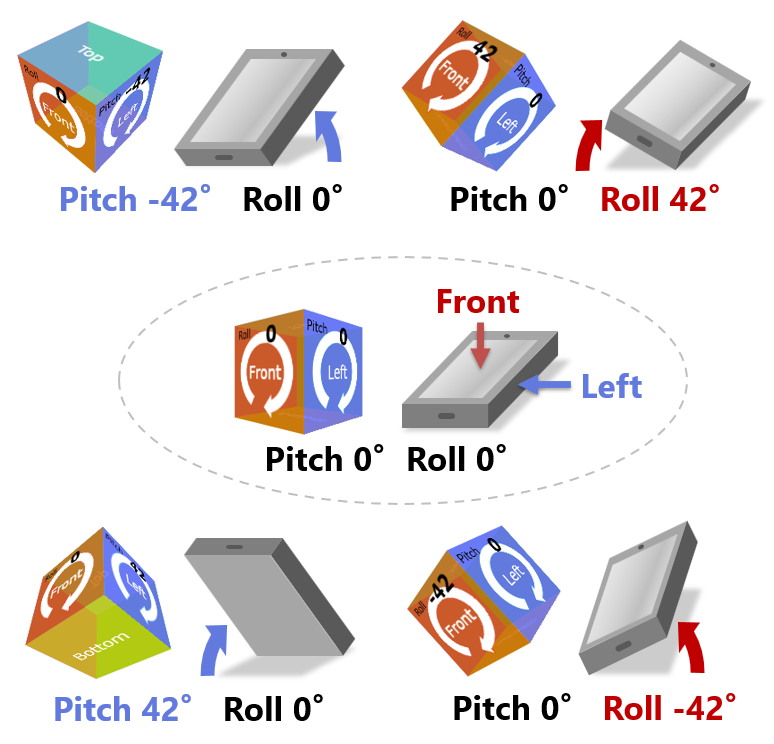
"SP Sensor" constantly monitors the "Pitch" angle (up and down rotation) and the "Roll" angle (tilt rotation) of the smartphone itself. By synchronizing the angle data acquired by the sensor side app on the smartphone with the monitoring side app, it is possible to remotely monitor the state of the "rotation angle".
Setup
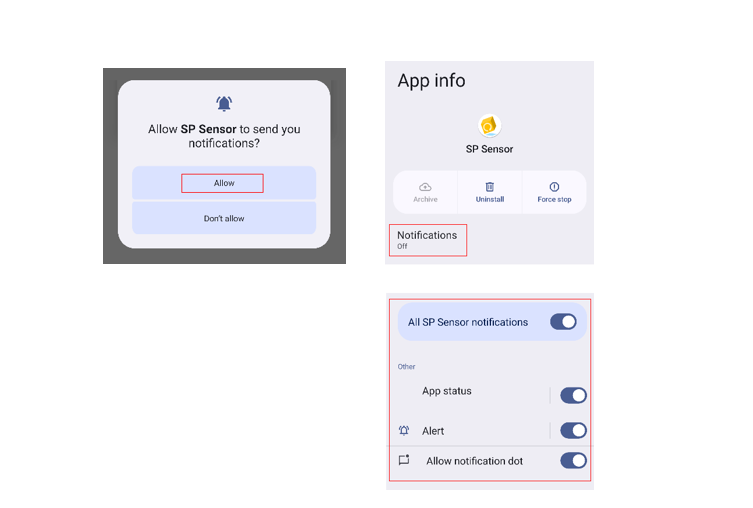
First, install "SP Sensor" on both Android smartphones. *A message will appear asking for permission to grant notifications to the app; please allow it.
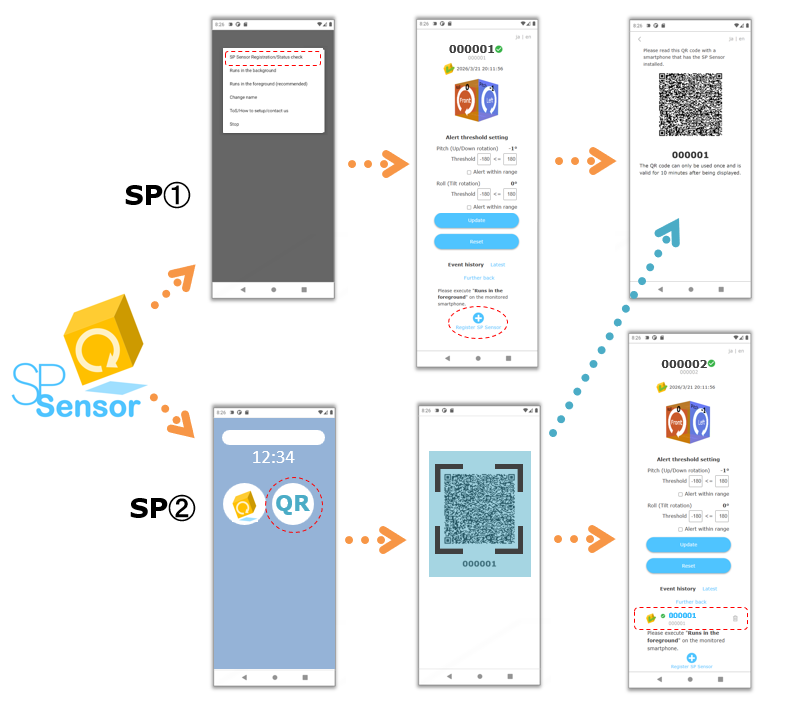
Select "SP Sensor Registration/Status check" from the menu on sensor side smartphone, then click "Register SP Sensor" to display the QR code.
Then, use monitoring side smartphone to read the QR code and register (please use a dedicated app to read the QR code). This completes the linking between the smartphones.
Next, start "Runs in the foreground (recommended)" from the menu of the sensor side smartphone (This is because, when running the app continuously, it is less likely to be forcibly terminated by the OS than when running in the background).
How to avoid stopping the app of the sensor side smartphone as much as possible
It is assumed that the sensor side smartphone will be left running while you want to monitor the status of SP Sensor, but depending on the processing on the smartphone OS side, the running the app may be forcibly stopped or put to sleep. As a countermeasure, there are the following methods.
- Keep your smartphone charged.
- Enable developer options and enable "Screen wil never sleep while charging".
- Set "Auto-update apps" in Google Play to "Don't auto-update apps".
- Run the app in "Runs in the foreground".
* Due to OS specifications, there is a limit to the continuous operation time of the app's foreground service, and the app's internal services are automatically stopped and started approximately every 5 hours. Also, since foreground services cannot be started when the app is running in the background, we recommend running the app in the foreground if you want to run it continuously.
Finally, select "SP Sensor Registration/Status check" from the monitoring side smartphone's menu and select the registered sensor side smartphone to check the status of the sensor.
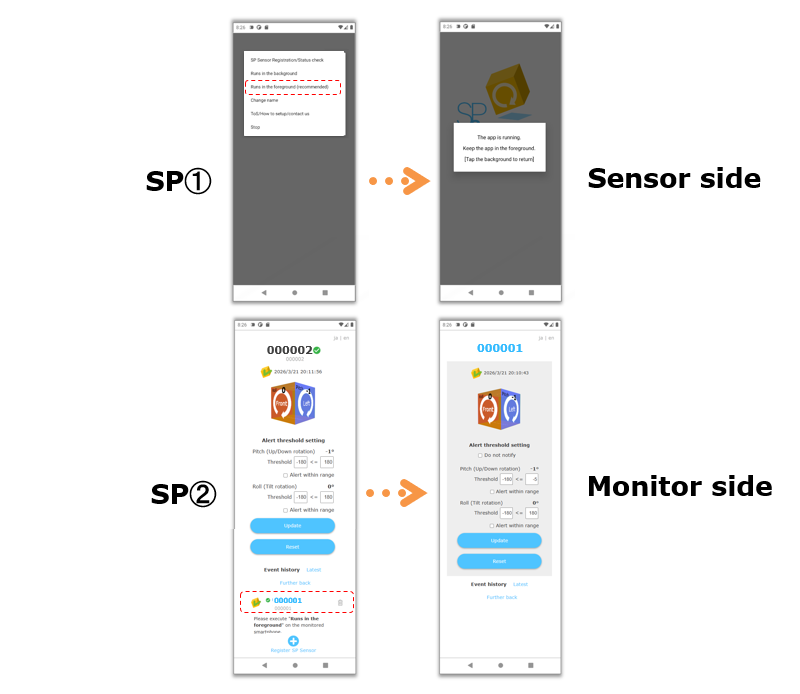
"SP Sensor" setup is now complete. It's easy!
Please note that the rotation angles of "pitch" and "roll" monitored by "SP Sensor" are "vertical rotations" measured by the accelerometer, so you may need to be creative when mounting your smartphone on the object you want to monitor.
Alert threshold setting
By setting warning thresholds for "Pitch" and "Roll" angles, the monitoring application can issue Alert(occurred) and Normal(restored) notifications.
The threshold is entered within the range of -180° to 180°, and you can set whether or not to issue a alert within that range.
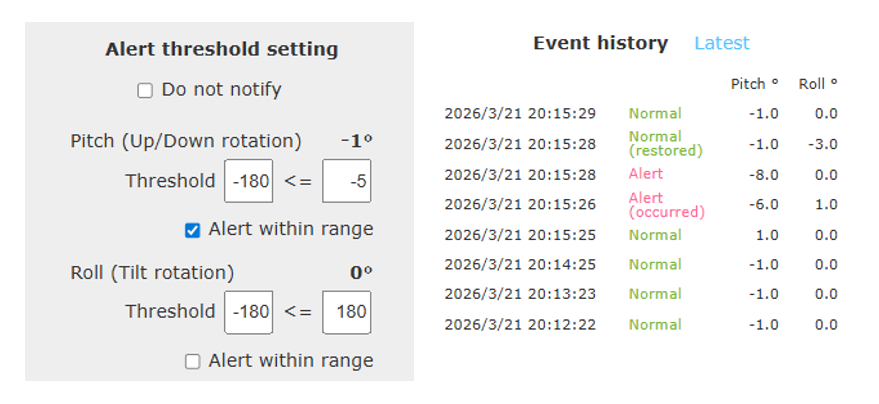
A "Alert(Occurred)" notification is sent if either the "Pitch" or "Roll" threshold is met, and a "Normal(restored)" notification is sent if neither threshold is met.
Past notifications and rotation angle status can be viewed as event history for the most recent approximately 7 days.
Threshold settings for the target smartphone can be configured from either the monitoring side app or the sensor side app.
Until the end Thank you for reading! If you have any opinions, please feel free to send us a message.
P2P · Android · Sensor