

How to access your office Linux PC from your Android smartphone outside the house with SSH
March 02, 2024
Have you ever wanted to access your office PC using your smartphone from anywhere, such as when commuting to work or traveling? In that case, there is a way to make it accessible from the Internet by changing the settings of the network environment such as the office's firewall. I think there are some issues, such as not being able to do that in the first place. Therefore, I would like to introduce an easy and safe way to do it using P2P.
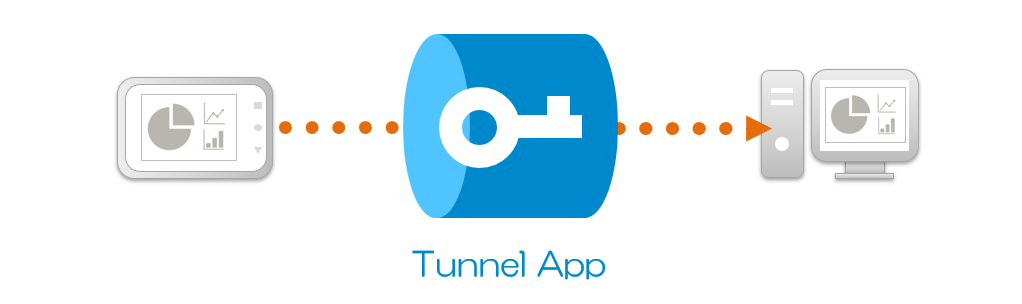
The access environment
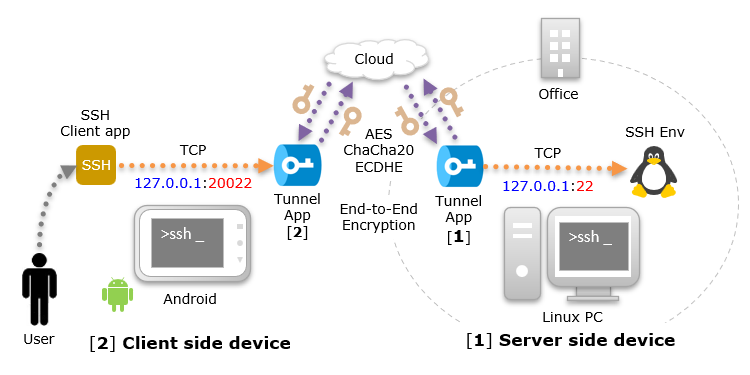
The access environment uses an Android smartphone and a Linux PC. Then, use a "Tunnel App" for the network environment that connects Android and Linux. (This is a P2P app developed by us and provided free of charge)
The Tunnel App is installed and used on two devices, one app accepts access from the client app on a proxy port, and the other app accesses the server app. Communication data between apps on your device is end-to-end encrypted, so you can safely access the data without it being seen by third parties.
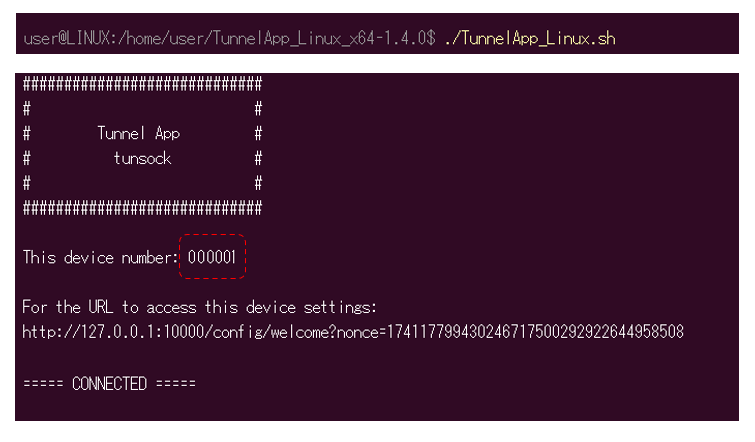
Linux PC setup
On a Linux PC, enable the SSH environment, then install and start the "Tunnel App (Linux version)". Then, the following message will then be displayed on the console. The settings on the Linux PC are now complete, and there is no need to change the settings of your office's network environment. That's easy! In this example, Tunnel App's device number is "000001".
Android smartphone setup
Install and start the "Tunnel App (Android version)" on your Android smartphone. In this example, Tunnel App's device number is "000002".
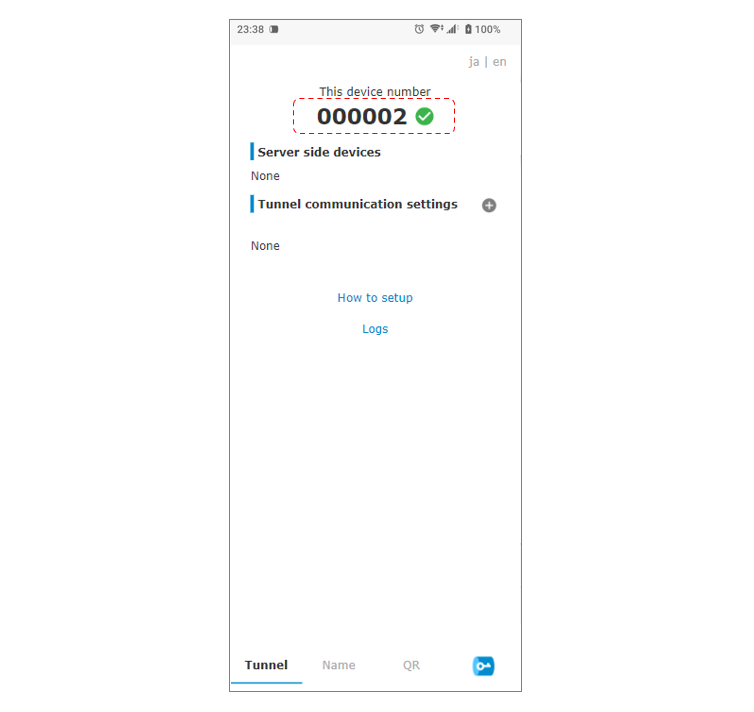
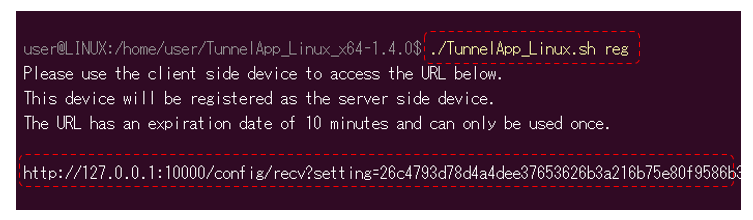
Using Tunnel App on the Linux PC that you installed earlier, use the command below to obtain the URL for registering this device as a server-side device, and access it using the browser on your Android smartphone.
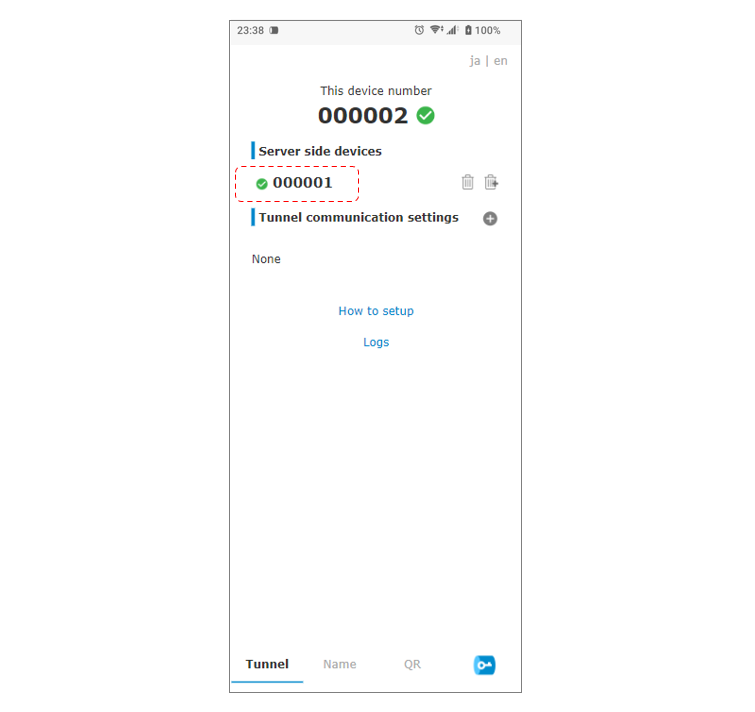
Then, Tunnel App on the Linux PC will be registered as a server side device.
Next, register the tunnel communication settings.
On the "Client side device", select "In device apps only" to limit access to "127.0.0.1 (local host)", and input "20022" as a proxy port to accept access from SSH client.
For the "Server side device", select Tunnel App "000001" on the Linux PC, set "127.0.0.1" and "22" as the IP address and port to access the SSH environment, and save.
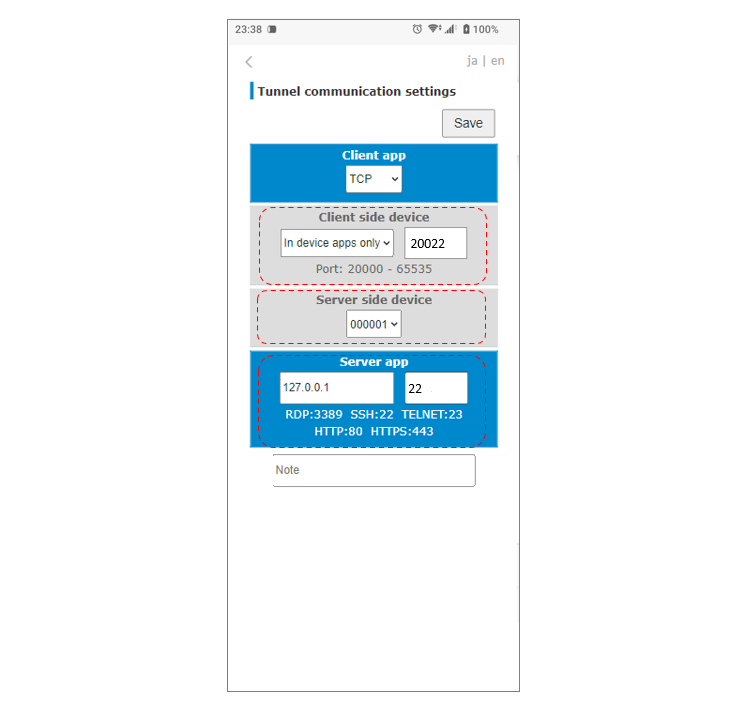
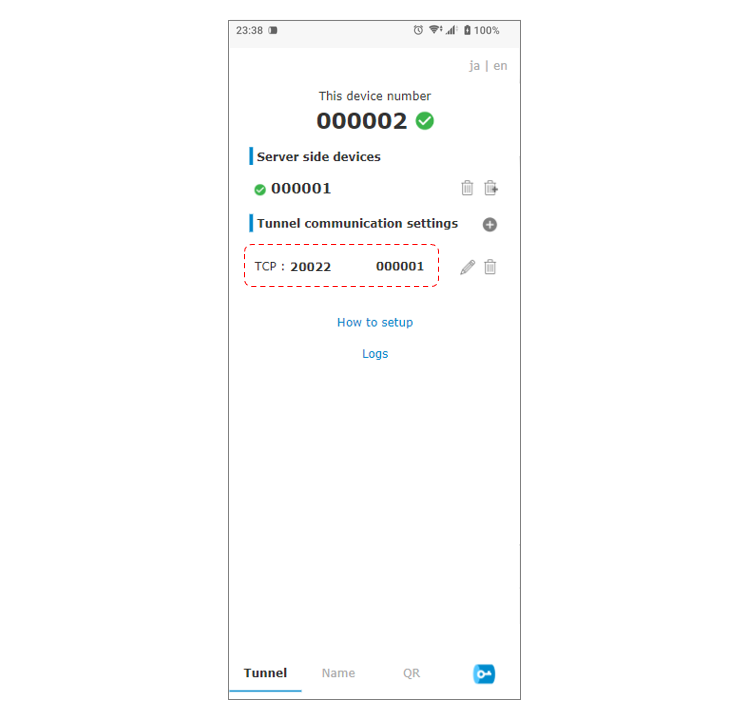
Tunnel App settings are now complete! (That's easy!)
SSH client setup
For the SSH client, install "Termius - Modern SSH Client".
* Changed from JuiceSSH (2026/07/28)
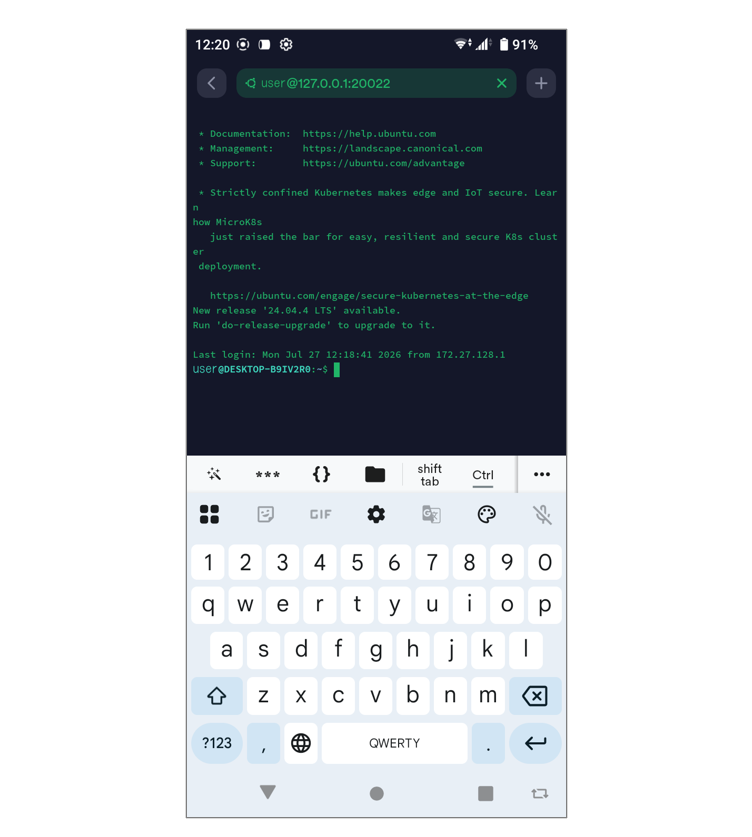
For "Hosts," set "127.0.0.1:20022" to access the proxy port of Tunnel App on the same device.
For "Credentials," set and save the username and password used to log in to the Linux PC via SSH.
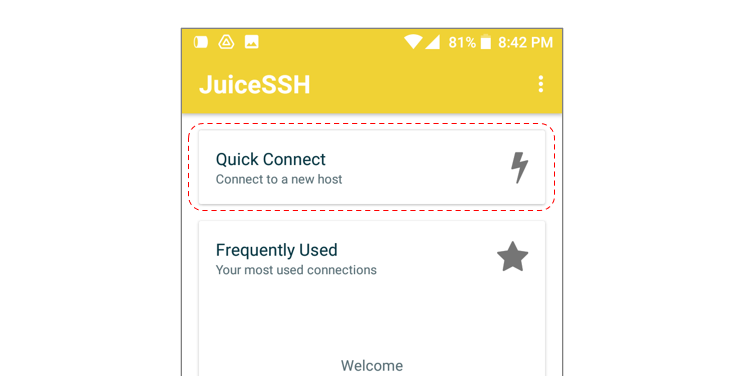
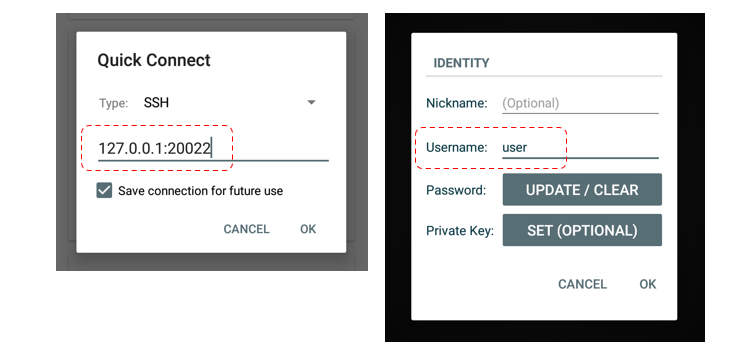
SSH access has started and you can log in!
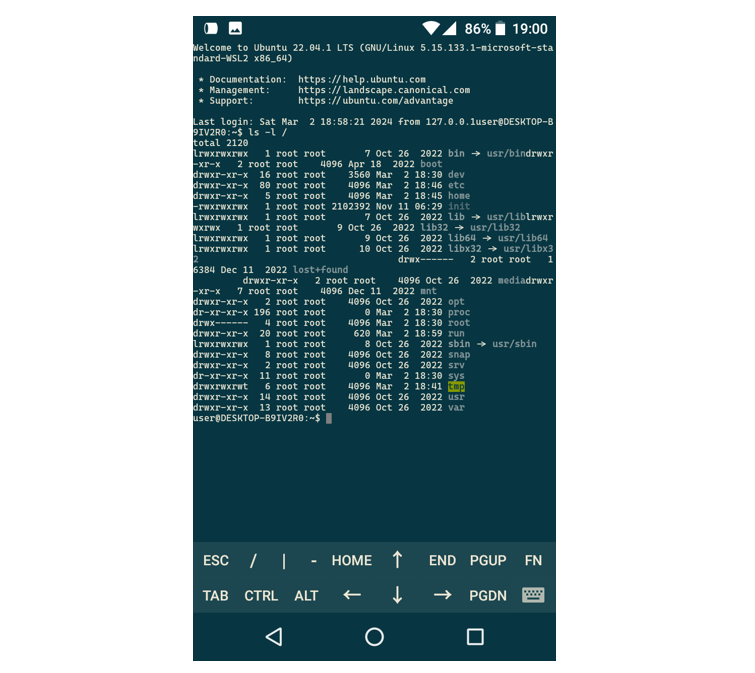
Until the end Thank you for reading! If you have any opinions, please feel free to send us a message.
P2P · Android · Linux · SSH