

How to access your home Camera from your Android smartphone outside the house with ONVIF
March 17, 2024
Have you ever wanted to access your home Camera using your smartphone from anywhere, such as when commuting to work or traveling? I think there are ways to do this, such as changing the settings on your home router so that you can access it from the Internet, or using a service provided by the camera manufacturer. However, this poses challenges such as difficult settings, security concerns, and manufacturer restrictions. Therefore, I would like to introduce an easy and safe way to do it using P2P.
The access environment
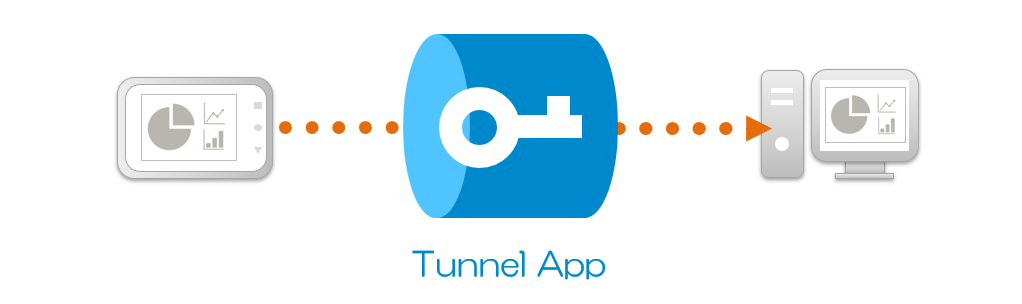
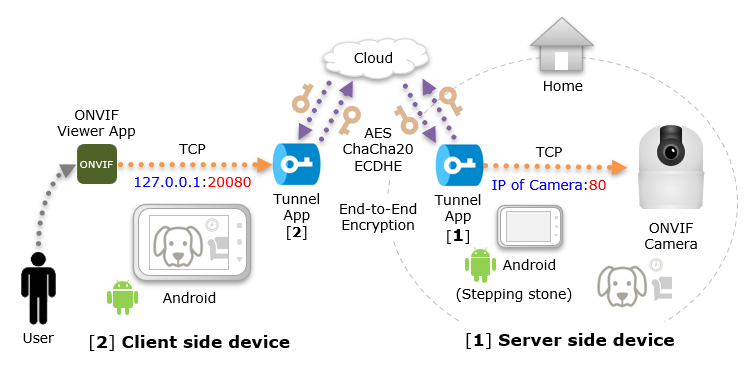
The access environment uses a network camera and an Android smartphone for viewing, as well as another Android smartphone for use as a stepping stone. Then, use a "Tunnel App" for the network environment that connects Android devices. (This is a P2P app developed by us and provided free of charge)
The Tunnel App is installed and used on two devices, one app accepts access from the client app on a proxy port, and the other app accesses the server app. Communication data between apps on your device is end-to-end encrypted, so you can safely access the data without it being seen by third parties.
Network camera setup
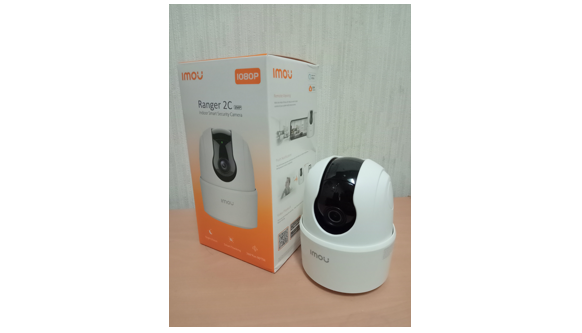
As for the network camera, I tried using the "IMOU Ranger 2C" which is reasonably priced and supports ONVIF as well as pan/tilt operations.
ONVIF stands for Open Network Video Interface Forum and is a forum that standardizes the interfaces necessary for using network cameras (IP cameras). Interfaces for setting, acquiring, controlling, and streaming network camera information are defined, and network cameras and software that comply with these interfaces can work together without depending on the manufacturer.
Setup the network camera using the dedicated app "IMOU LIFE".
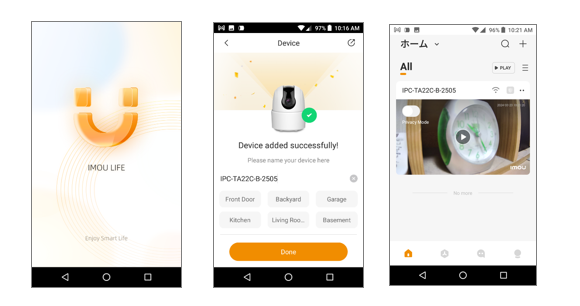
You can view live video from anywhere using only the IMOU network camera and dedicated software, but there are limits to the number of users who can share and the number of cameras that can be registered, and an IMOU account is also required. With the general-purpose ONVIF Viewer app, you can view multiple network cameras, including those made by other companies, without an account.
Setup Android smartphone for stepping stone
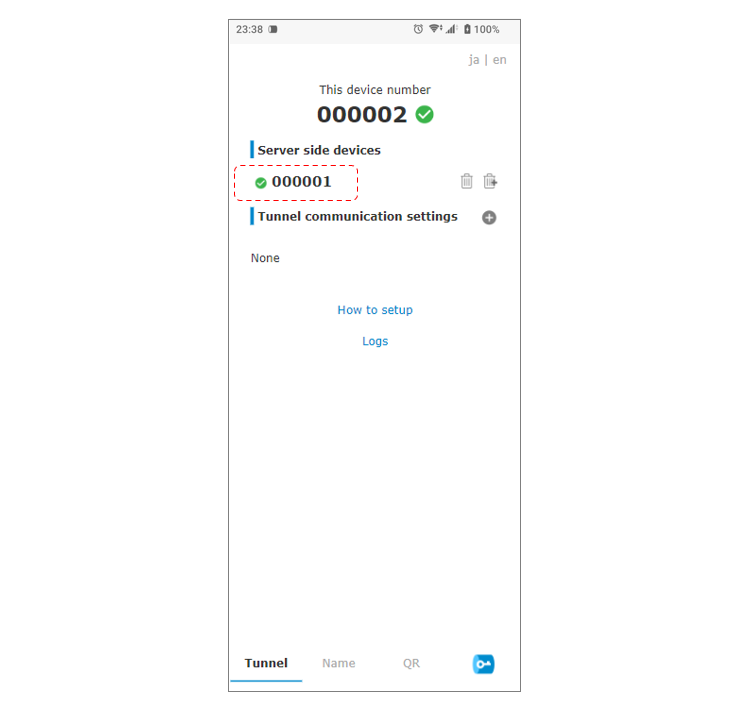
On an Android smartphone for stepping stone, after installing it in the same network environment as the network camera, then install and start the "Tunnel App (Android version)". Then, the following browser screen will be displayed. The settings on the network camera side are now complete, and there is no need to change the settings on your home router. That's easy! In this example, Tunnel App's device number is "000001".
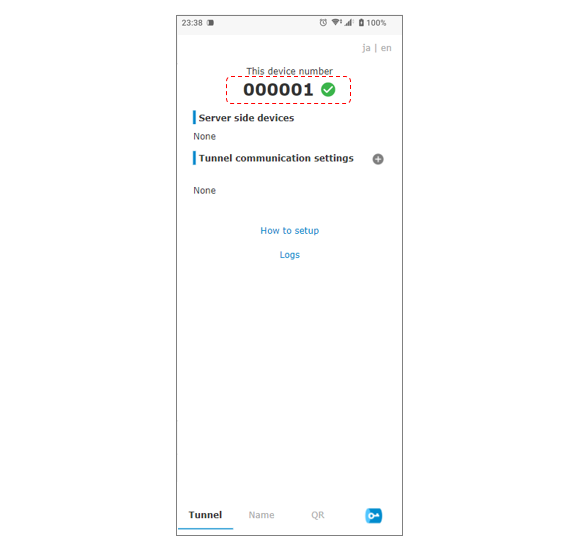
The device you use as a stepping stone can be anything other than Android, such as Windows or Linux, as long as it is an environment where you can install Tunnel App.
Setup Android smartphone for viewing
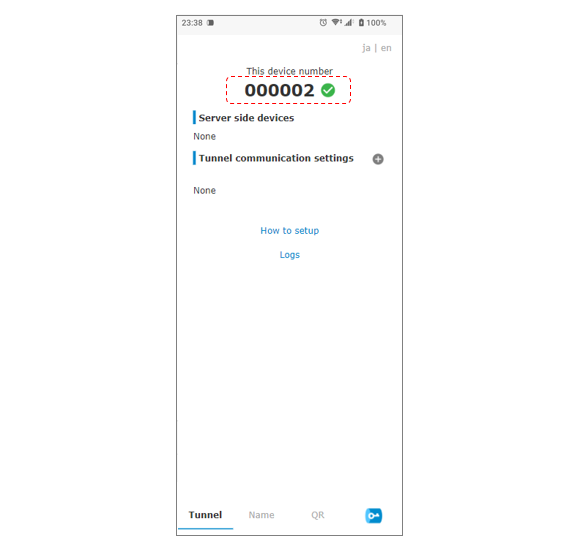
Install and start the "Tunnel App (Android version)" on an Android smartphone for viewing. In this example, Tunnel App's device number is "000002".
Display the QR code of Tunnel App on the Android smartphone for stepping stone that you installed earlier, and read it with the QR code reader on your for viewing Android smartphone.
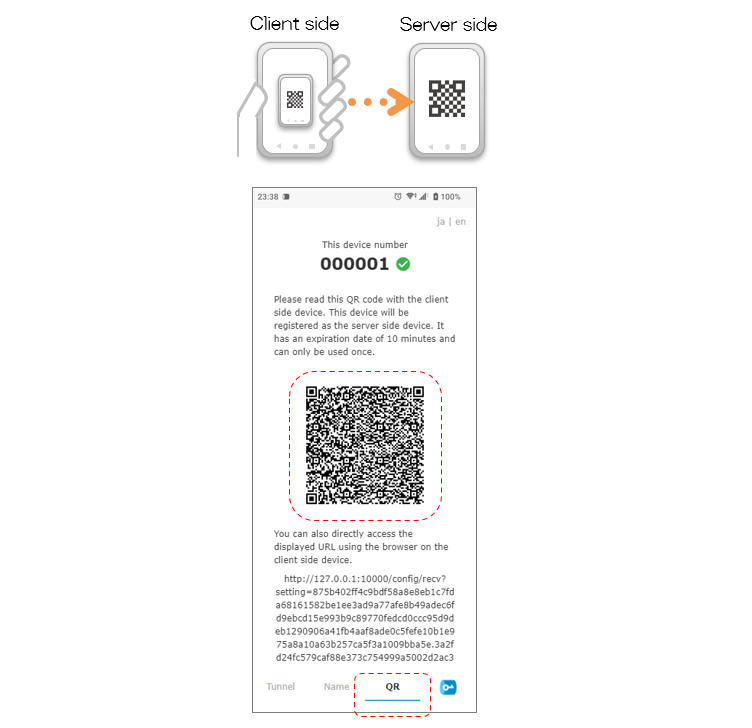
Then, Tunnel App on the for stepping stone Android smartphone will be registered as a server side device.
Next, register the tunnel communication settings.
On the "Client side device", select "In device apps only" to limit access to "127.0.0.1 (local host)", and input "20080" as a proxy port to accept access from ONIVF Viewer app.
For the "Server side device", select Tunnel App "000001" on the for stepping stone Android smartphone, set "IP address of network camera" and port "80", and save.
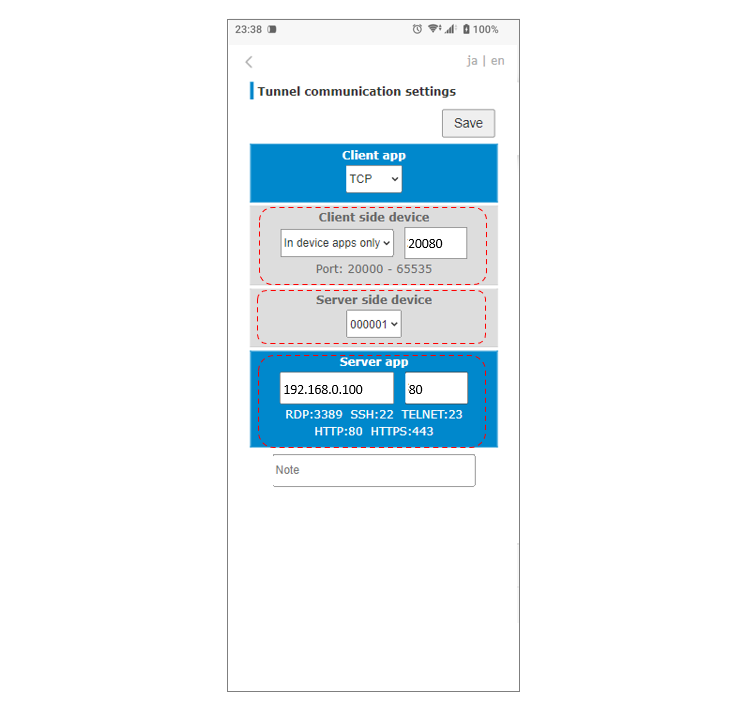
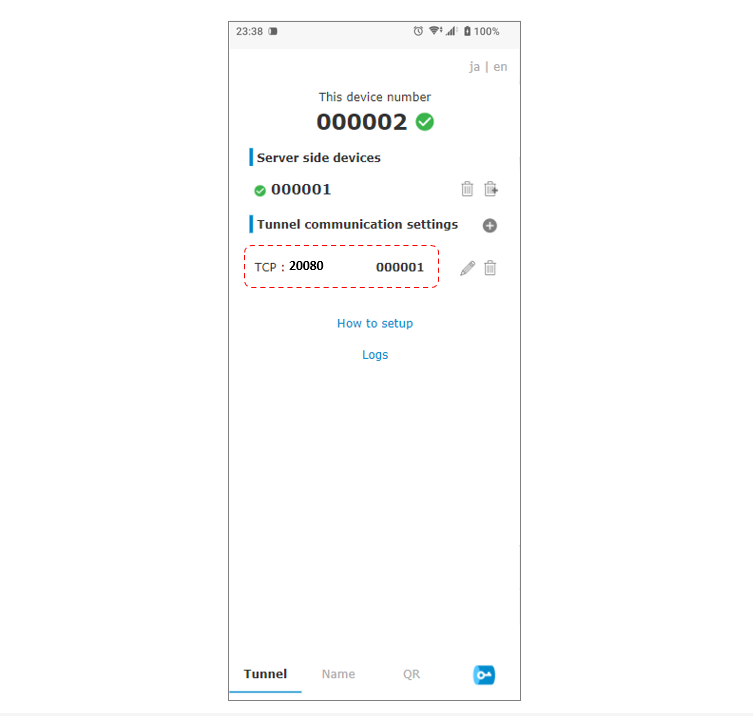
Tunnel App settings are now complete! That's easy!!
Setup the ONVIF viewer app
The ONVIF viewer app installs "Onvier - IP Camera Monitor".
Tap "+ (Add device)" in the menu and select "ONVIF device". For "Address", set "127.0.0.1:20080" to access the proxy port of Tunnel App on the same device. For "Username", set the account "admin" and password for accessing the network camera. Uncheck "Quick Setup", select "HTTP" for "Transport Protocol", and tap the "Set up" button.
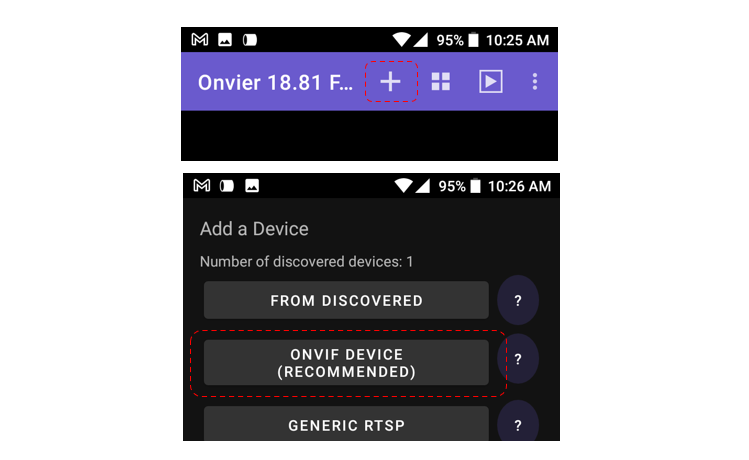
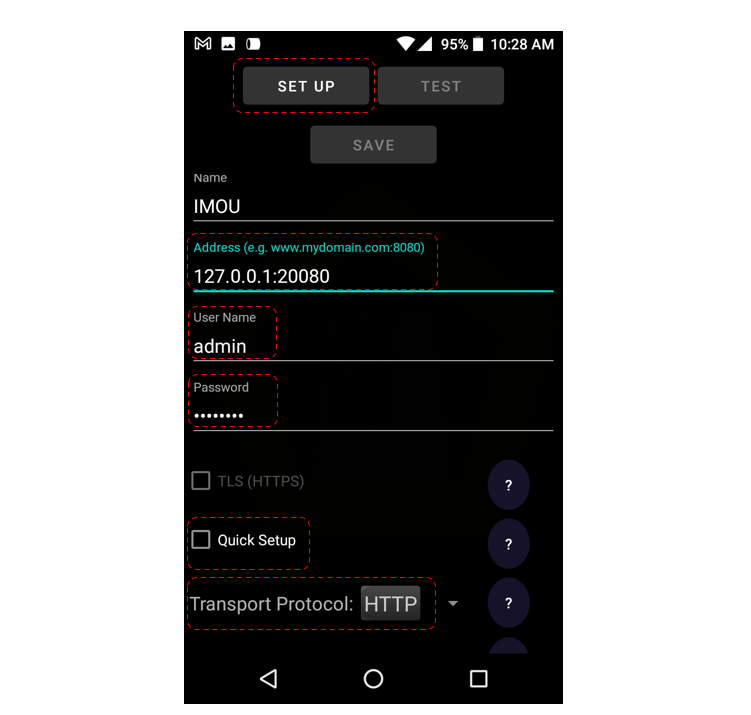
The acquisition of setting information etc. to the network camera will begin, so when "Success" is displayed, tap "OK" and "Save".
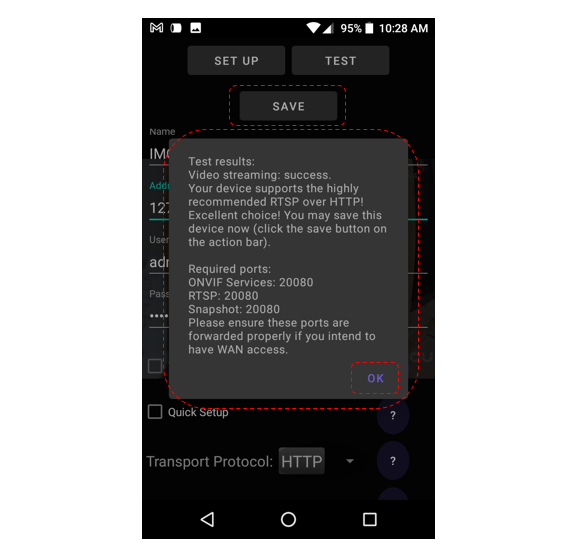
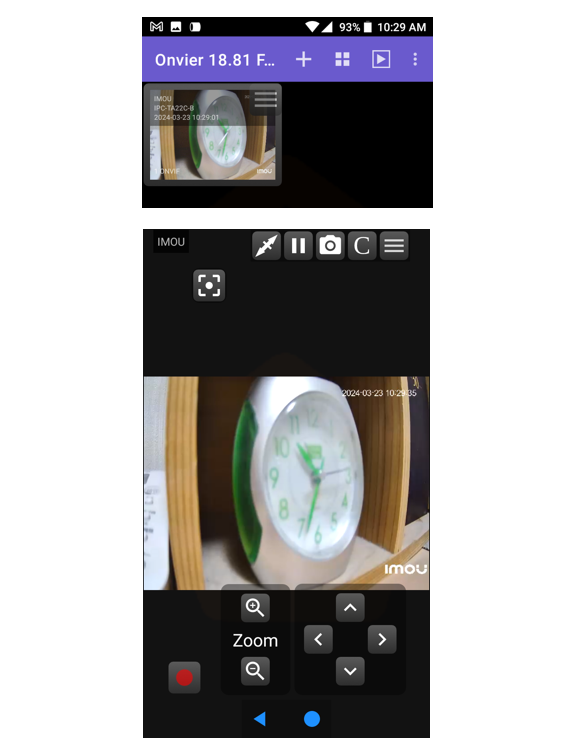
When you select a registered network camera, access begins and live video is displayed!
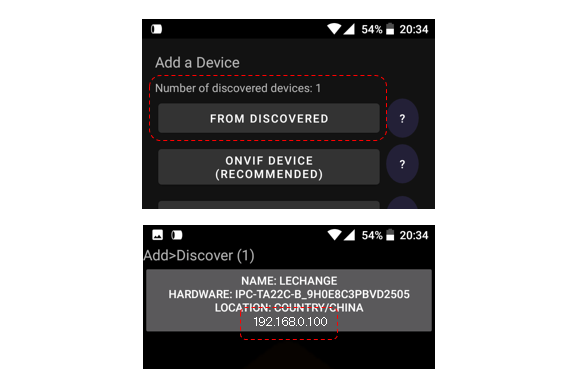
You can check the IP address of the network camera, which is necessary for tunnel communication settings, from the IP address information issued by DHCP of your home router. You can also check using the discovery function of "Onvier".
Until the end Thank you for reading! If you have any opinions, please feel free to send us a message.
P2P · Android · IoT/M2M · Camera · ONVIF